
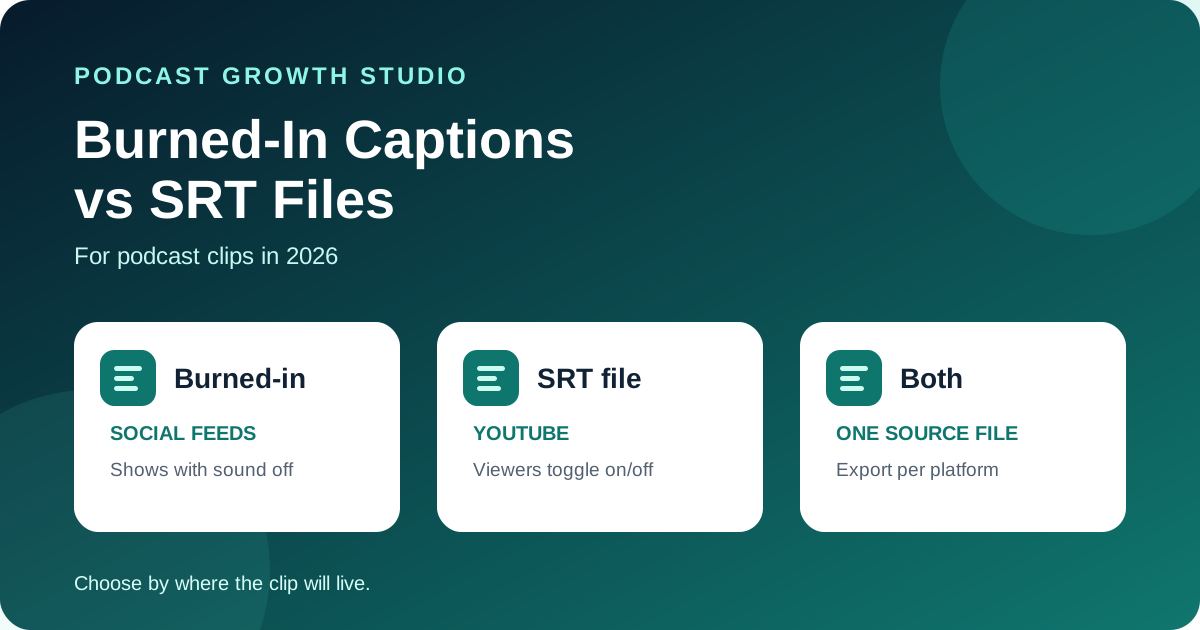
Burn captions into podcast clips you post to LinkedIn and other social feeds, because the text shows on every device even with the sound off. Add an SRT file on YouTube, where viewers expect to switch captions on and off. Most B2B shows need both, on different platforms.
Burned-in captions (also called open captions) are part of the video image. An SRT file holds closed captions: timed text the platform shows on top of the video, which viewers can usually turn off. The right choice depends on where the clip lives and who has to edit it.
Editorial note: platform behavior below comes from LinkedIn and YouTube help documentation, checked on October 12, 2026. Interfaces change, so check what your upload screen shows.
The quick answer
If a clip is going into a feed where people scroll past with the sound off, burn the captions in. If the video is going on YouTube, upload an SRT file too. Keep one caption file per episode as your source, and generate both versions from it.
The mistake to avoid is showing both on the same video. A clip with burned-in captions does not need closed captions switched on in the same feed.
Side-by-side comparison
| Decision | Burned-in captions | SRT file (closed captions) |
|---|---|---|
| Shows with sound off | Always, on every device | Only if the platform and viewer settings show captions |
| Viewer can turn them off | No | Usually yes |
| Styling and branding | Full control: font, color, position, highlights | Platform styling; plain SRT carries no style information |
| Fixing a typo after posting | Re-export and repost the video | Edit or replace the caption file |
| Screen readers and text access | Text is part of the image | Text is available to the platform as text |
| Best for | LinkedIn, Instagram and TikTok feed clips | YouTube episodes and longer videos |
When to burn captions in
Burn them in for short clips that live in a social feed. The viewer decides in a second or two whether to stop scrolling, and on mute your words only exist as text on screen. Burned-in captions also let you style them in your brand font and colors, and highlight the key phrase in each line.
The trade-off is permanence. A wrong name or a misheard technical term is baked into the video. Fixing it means exporting again and reposting, so proofread every clip before it goes out, especially guest names, company names and industry terms.
When to use an SRT file
Use an SRT file on YouTube and for full episodes. Viewers can turn captions on or off, and the text stays as text, which helps accessibility. A typo can be fixed by replacing the file instead of re-exporting the video.
Keep the file simple. YouTube's help documentation says it supports basic SRT files in plain UTF-8 and does not read styling markup in them. If you need positioning or styling in the caption file itself, YouTube also accepts WebVTT and TTML.
How to add an SRT on LinkedIn and YouTube
LinkedIn's help center says you can add closed captions when you share a video from the desktop site, for personal profiles and LinkedIn Pages. The SRT file has to be attached before the video is posted:
- Start a video post from the share box and choose your video file.
- In the preview, open the video settings and select a caption file.
- Attach your SRT file, add your post text, then post.
Captions appear once LinkedIn finishes processing the video. If your clip already has burned-in captions, skip the SRT here so viewers do not see text twice.
YouTube
- In YouTube Studio, open Subtitles and select the video.
- Add a language, then choose to add subtitles by uploading a file.
- Choose the option with timing, since an SRT file already contains timestamps, then upload and save.
Sources: LinkedIn: add closed captions, YouTube: supported caption files, YouTube: add subtitles and captions.
Caption rules for B2B clips
- Two lines at most. Short lines read faster on a phone.
- High contrast. Light text on a dark backing, or the reverse. Never thin text straight on busy video.
- Stay clear of the edges. Platform buttons and post text cover the bottom and sides of vertical video, so keep captions in the middle band.
- Highlight one phrase, not every word. Constant word-by-word animation gets tiring in a 60-second clip.
- Proofread names and terms. Automatic captions mishear jargon, acronyms and guest names more than anything else.
- Use your brand font. Consistent captions make your clips recognisable before anyone reads the name.
Frequently asked questions
Should podcast clips have burned-in captions or an SRT file?
For LinkedIn, Instagram and TikTok feeds, burn the captions in, because most clips start playing without sound and burned-in text shows on every device. For YouTube, upload an SRT file as well, so viewers can turn captions on or off and the text is available to screen readers.
Can I upload an SRT file to LinkedIn?
Yes. LinkedIn's help center says you can add closed captions on desktop by attaching an SRT file before the video is posted, for both personal profiles and LinkedIn Pages.
What SRT format does YouTube accept?
YouTube supports basic SRT files in plain UTF-8 with no styling markup. For positioning or styling, YouTube also accepts WebVTT and TTML.
Can I use both burned-in captions and an SRT file?
Yes, on different platforms. Do not show both on the same video in the same feed, or viewers see two sets of text on top of each other.
Captions are one step of the clip
Captions make a clip watchable on mute. They do not decide which moment deserves a clip or what the post says. For that, use our 3-Test Rule for choosing clips, and compare caption tools in Opus Clip vs Vizard vs VEED. If you want the whole clip workflow handled, see The Content Engine.
Podcast Growth Studio (PGS) is a studio that turns one B2B podcast episode into a month of LinkedIn content: captioned clips, carousels, quote graphics and a posting plan, for coaches, consultants, CPAs, advisors and founders who podcast.